Gradebook

Written by Priya Pawar Lakshmi Narayanan
Updated at July 2nd, 2026
How can I force submit and un-submit an assignment for individual and all students ?
Updated July 2nd, 2026
Force Submitting an assignment for Individual Student from the Gradebook
In the gradebook's assignment management options, a "Submit" option is available within the selected student's cell, allowing you to force submit the assignment.

A Submit Assessment warning modal will be displayed to confirm the force submission of assessment. Clicking the Save button will update the assignment status to Submitted.

Submit All and Un-Submit All Status from the Summary page
This option is also available in the Summary tab, where teachers can mark assignments as submitted or started either for all students or for individual students.

The Status dropdown at the header displays 2 options : Submit All, Un-Submit All.
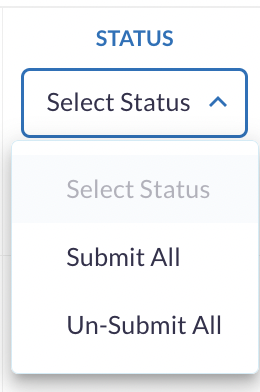
- Submit All - Force submits the assignment submission process. To force submit, Assignment status of the student should be ‘Not Started’.
- Un-submit All - Reverts submissions to allow further editing for previously submitted work. Assignment status should either be ‘Submitted’ or ‘Graded’
Selecting Multiple Students
- Teachers can change the status of one or more students by using the Status dropdown menu in the header with the following options: Submit All , Un-Submit All and clicking the Apply button to save changes to the Status dropdown.
- The Apply button will remain disabled until at least one (1) student has been selected. Once at least one (1) student has been selected, the button will become active, allowing teachers to apply the status change.
- To select multiple students, teachers can either:
- Click on individual student checkboxes
- Select the checkbox in the header to select/deselect all students
The Apply button will be disabled unless at least one student has been selected and activated.

Force Submitting an Assignment for Multiple Students
- Select the "All Students" checkbox from the header.
- Click on the status dropdown.
- Select the "Submit All" option from the Status dropdown in the header to force submit the assignment for multiple students.
- Note: If there are already graded students in the multiple students list and the teacher tries to force submit the assignment, a warning message will be displayed.


Un-Submitting an Assignment for Multiple Students
- Select the "All Students" checkbox from the header.
- Click on the status dropdown.
- Select the "Un-Submit All" option from the Status dropdown in the header to un-submit the assignment for multiple students.
- Note: If there are already graded students in the multiple students list and the teacher tries to force submit the assignment, a warning message will be displayed.

Assignment Status Change for Individual Students
Teachers can also change the individual status of students by clicking on the status dropdown of the individual student. The application behavior will change to the following when the existing options are tried to change from the status dropdown.
“Graded” Status of Individual student
When an assignment is marked as Graded in the Status dropdown for a student, the other status options will appear as follows:
- Not Started – This option will be greyed out.
- Started – This option will be enabled, allowing you to change the status from Graded to Started.
- Submitted – This option will be enabled and the teacher can change the Graded assignment to an un-graded one.

- If the teacher changes the status from Graded to Started using the dropdown, a warning message will appear for the teacher. Clicking the Save button will update the assignment status to Started.

- If the teacher changes the status from Graded to Submitted status using the dropdown, a warning message will appear for the teacher. Clicking the Save button will update the assignment status to Submitted.

“Submitted” Status of an Individual student
When an assignment is marked as Submitted in the Status dropdown for a student, the other status options will appear as follows:
- Not Started – This option will be greyed out.
- Started – This option will be enabled, allowing the teacher to change the status from Submitted to Started so the student can retake the assignment.
- Graded – This option will be enabled allowing the teacher to change the status from Submitted to Graded.

If the teacher changes the status from Submitted to Started using the dropdown, a warning message will appear for the teacher. Clicking the Save button will update the assignment status to Started.
If the teacher changes the status from Submitted to Graded using the dropdown, a warning message will appear for the teacher. Clicking the Save button will update the assignment status to Graded.

“Started” Status of an Individual student
When an assignment is marked as Started in the Status dropdown for a student, the other status options will appear as follows:
- Not Started – This option will be disabled.
- Submitted – This option will be enabled, allowing the teacher to change the status from Started to Submitted (force submission by the teacher).
- Graded – This option will be enabled allowing the teacher to change the status from Started to Graded.

If the teacher changes the status from Started to Submitted using the dropdown, a warning message will appear for the teacher. Clicking the Save button will update the assignment status to Submitted.

If the teacher changes the status from Started to Graded using the dropdown, a warning message will appear for the teacher. Clicking the Save button will update the assignment status to Graded.
“Not Started” Status of an Individual student
When an assignment is marked as Not Started in the Status dropdown for a student, the other status options will appear as follows:
- Started - This option will be disabled.
- Submitted - This option will be disabled.
- Graded - This option will be enabled, allowing the teacher to change the status from Not Started to Graded.

If the teacher changes the status from Not Started to Graded using the dropdown, a warning message will appear for the teacher. Clicking the Save button will update the assignment status to Submitted.